
We originally wrote this in January 2023, when DALL-E 2 was the only game in town and sticking it inside Sanity Studio felt like a neat trick. The landscape has shifted quite a bit since then, so we've updated this with what actually matters now.
The core idea hasn't changed: let editors generate images without leaving the CMS. The tools have.
The original approach: sanity-plugin-asset-source-openai
We built sanity-plugin-asset-source-openai (opens in new tab) as a quick way to wire DALL-E into Sanity Studio. It adds an "OpenAI" option to any image field, lets you type a prompt, and uploads the result as a Sanity asset.
Installation
Config
Store your API key in an environment variable prefixed with
SANITY_STUDIO_. Add it to.env.localand keep that file in.gitignore.
Schema
Any standard image field works. Nothing special needed:
Using it
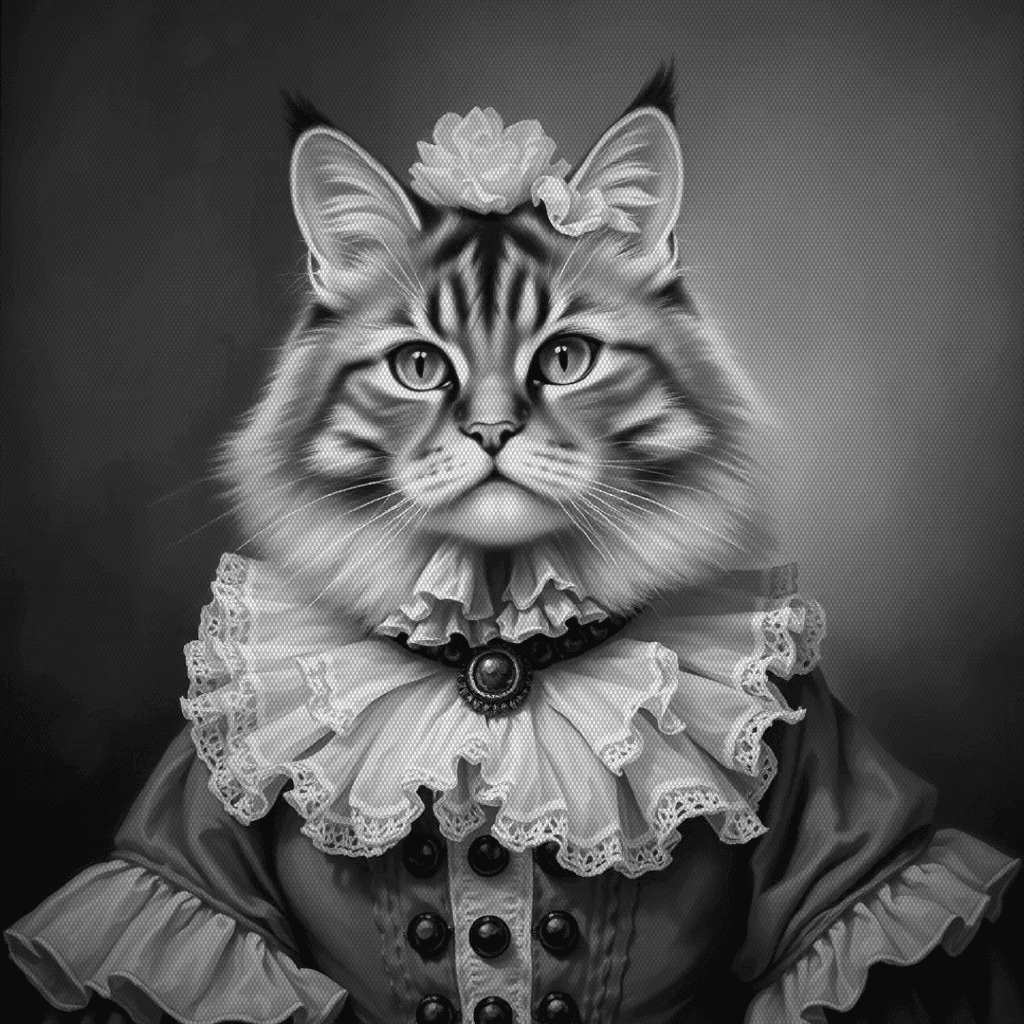
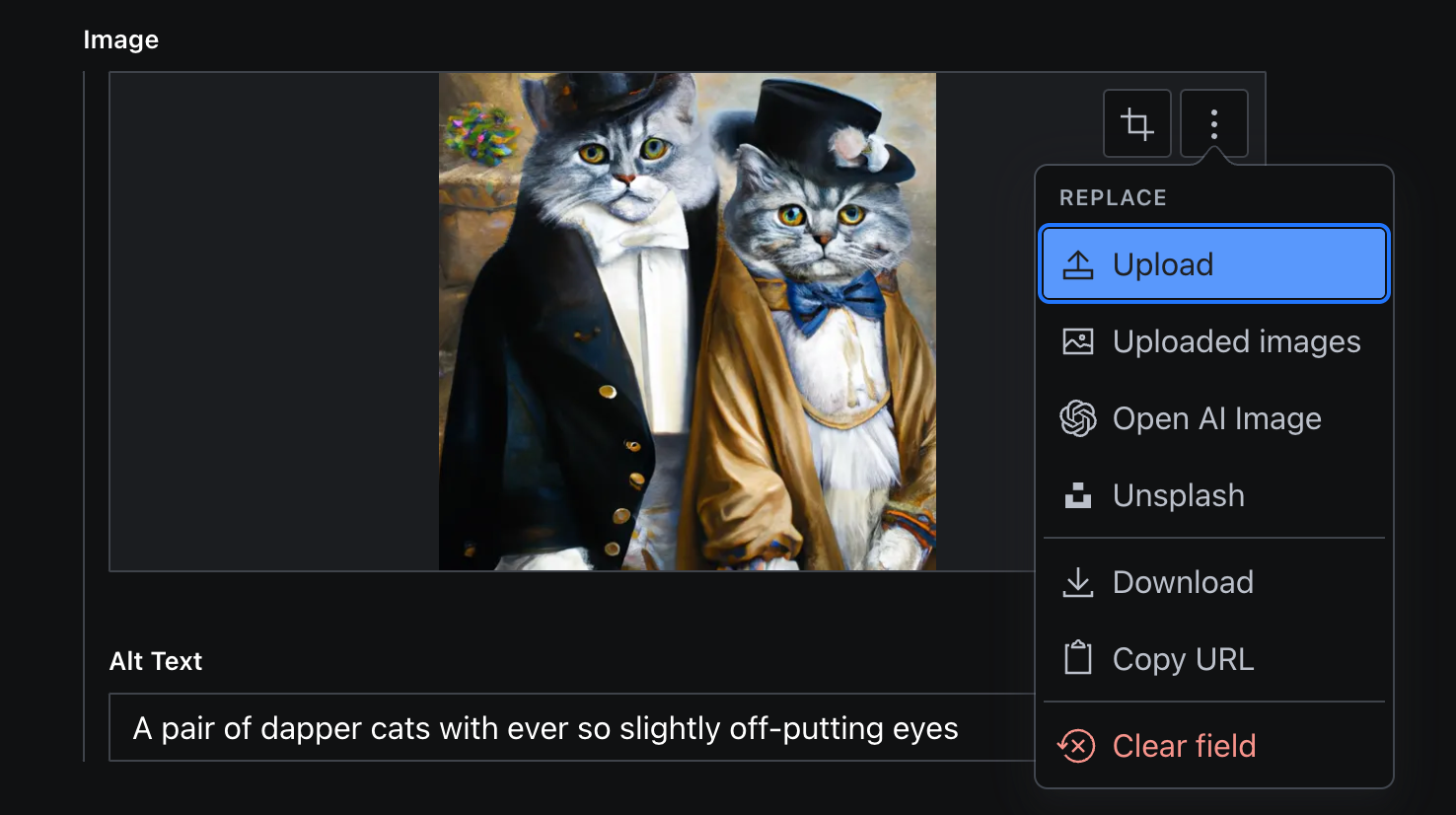
Click the image field, select "Open AI Image" from the asset source dropdown:
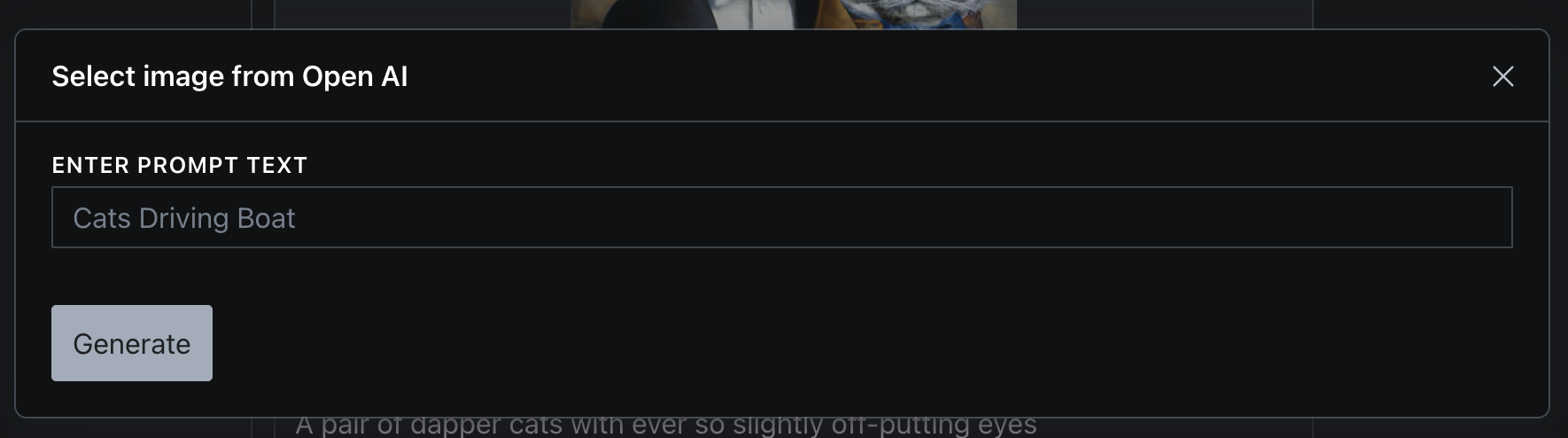
Type your prompt and hit Generate:
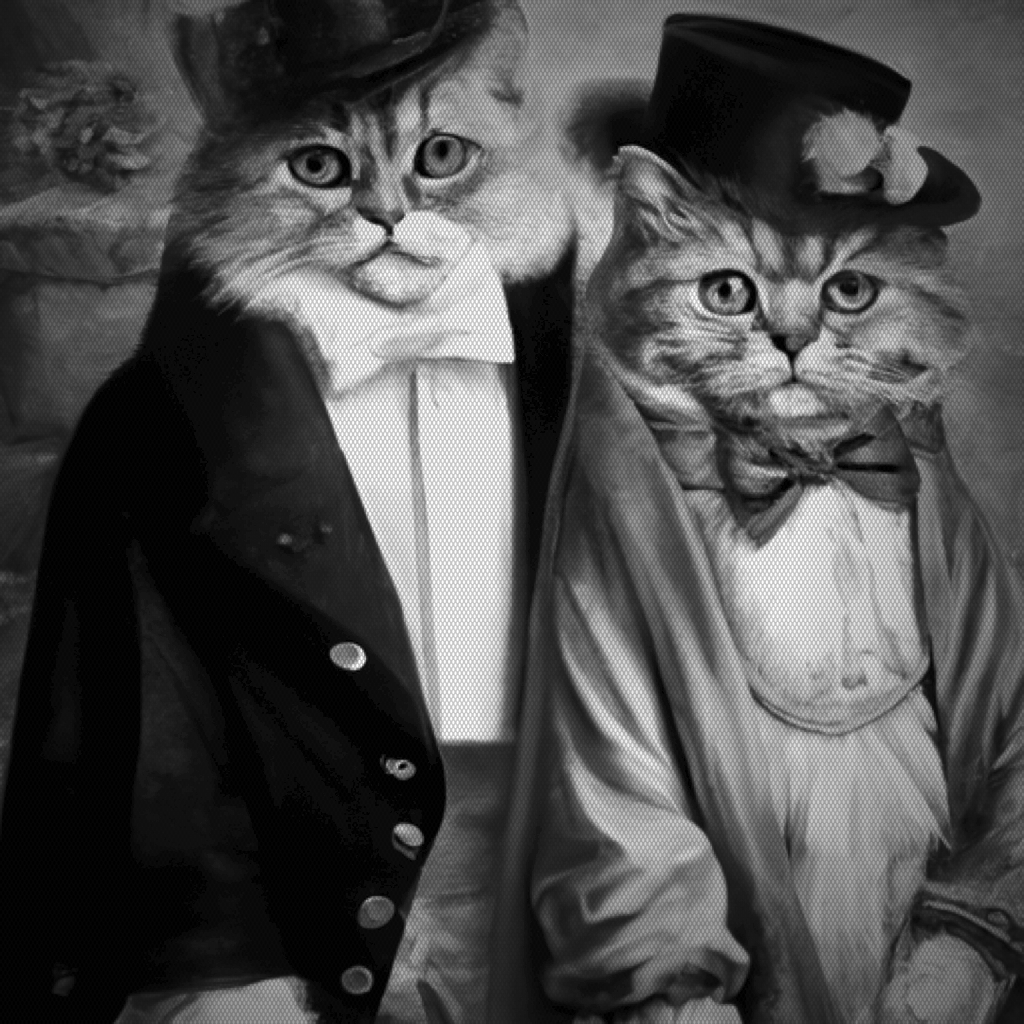
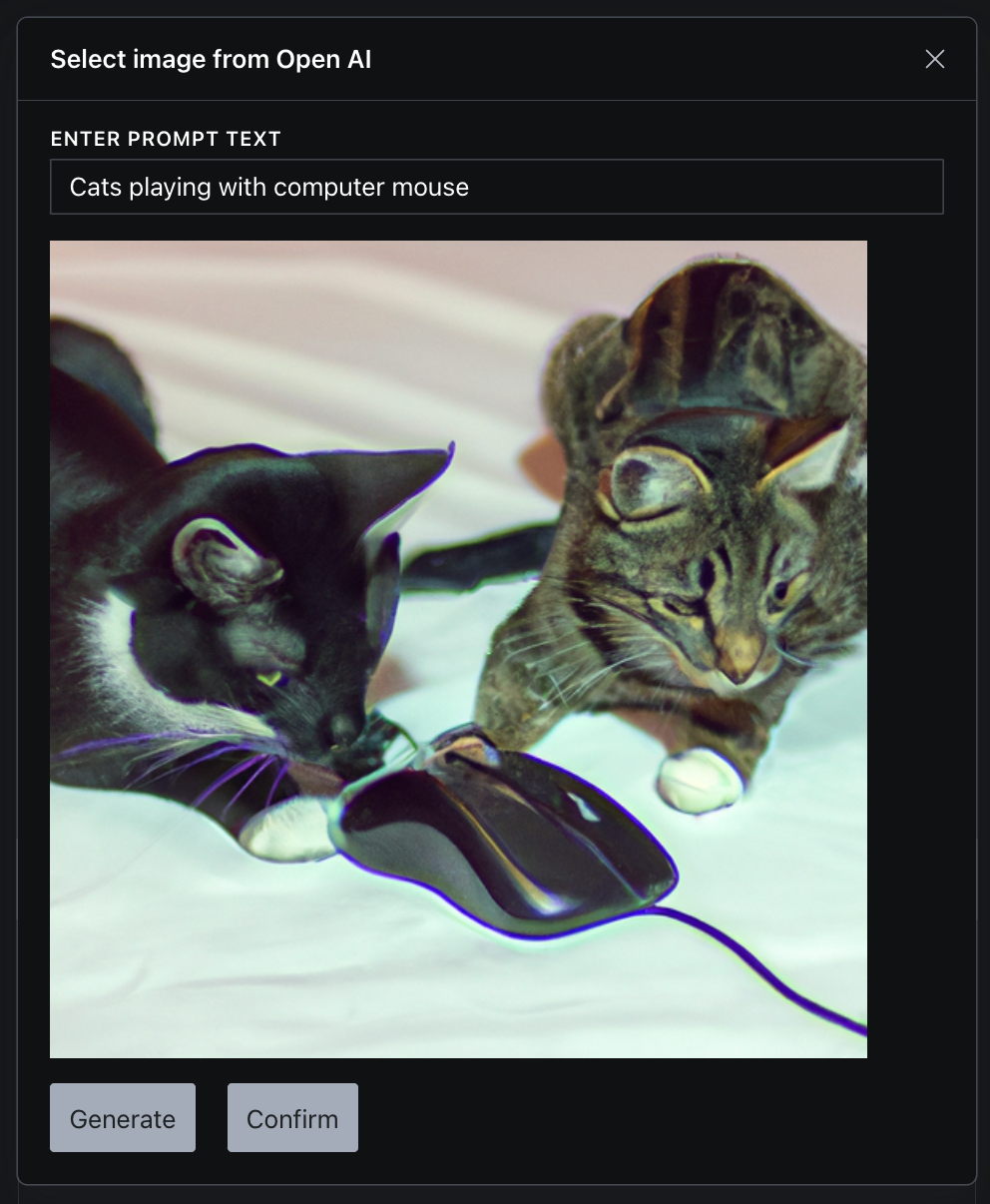
If you like the result, click Confirm to save it as a Sanity asset. If not, generate again until you get something usable.
Here's a demo of the full flow:
https://www.loom.com/share/267fed477cf4458394eb2c2e4c964efc (opens in new tab)
No spam, only good stuff
Subscribe, for more hot takes


What's changed since 2023
Quite a lot, actually.
DALL-E 2 and 3 are being retired
OpenAI is shutting down both DALL-E 2 and DALL-E 3 on May 12, 2026. The replacements are gpt-image-1 (released April 2025) and gpt-image-1.5 (December 2025), which are built on the GPT-4o architecture. They're better at following instructions, rendering text in images, and producing photorealistic output. Pricing moved to a per-token model, starting around $0.02 per image at low quality.
If you're using the plugin above, it will need updating before the deprecation deadline.
Sanity has native AI image generation now
This is the bigger story. Since Sanity 3.26, the official @sanity/assist (opens in new tab) plugin includes built-in image generation. You configure options.aiAssist.imageInstructionField on an image field and your editors get prompt-based generation without any third-party plugin.
Agent Actions (opens in new tab) takes it further, generating images as part of whole-document creation. If you're on Sanity's Growth plan or above, this is probably where you should start now rather than wiring up your own OpenAI key.
Other plugins worth knowing about
- sanity-plugin-gemini-ai-images (opens in new tab) uses Google's Gemini 2.5 Flash for text-to-image and image-to-image editing, including background swaps and lighting changes.
- sanity-plugin-image-gen (opens in new tab) (also ours) routes through Next.js API routes and Replicate, which gives you access to models like Flux and Stable Diffusion.
Here's that Replicate plugin running inside a studio, if you want to see what the editor actually gets.
Loading video player…
Which approach should you use?
If you're starting fresh today, use Sanity AI Assist. It's first-party, maintained, and doesn't require managing your own API keys.
If you need a specific model (say you prefer Flux's aesthetic over what Sanity's built-in option produces), one of the third-party plugins gives you that control.
The sanity-plugin-asset-source-openai approach from this original post still works, but you'll want to make sure it's updated for gpt-image-1 before May 2026. We're evaluating whether to update it or deprecate it in favour of our Replicate-based plugin, which is more model-agnostic.
The point remains the same as when we first wrote this: editors shouldn't have to leave their CMS to get an image. How you wire that up is just an implementation detail.
If you're interested in AI inside Sanity more broadly, Sanity Canvas covers AI-assisted writing directly inside the CMS, not just images.